Viewing a Request's Details
This page explains the structure and functionality of a Statistics Request's Details page. You will learn which charts provide the most value, how to use filters to identify strategy improvements, and how to navigate the results effectively.
Open a Details Page
To navigate to the details of a specific Statistics Request, visit the My Statistics Requests page within the Tick2Tick Dashboard.
Locate the Request you wish to analyze from your list and click the Details button on the left side of the data grid. This will open the full analytical view for that specific simulation.
Summary Card
At the top of the Statistics Request's Details page is the Summary card. This section provides a high-level textual overview of the Request’s performance and configuration.
| Term | Definition |
|---|---|
| User Tag | Your custom label used for organizing and identifying the Request. |
| Automatic Tag | A system-generated string consisting of key settings concatenated for quick reference. |
| Request Timestamp | The time the Statistics Request was uploaded to our systems. |
| Instrument | The trading Instrument used for the strategy. |
| TF (Timeframe) | The timeframe settings (e.g., Range, Time, or Trades) and their specific values. |
| Avg. RR per Trade | The average Risk/Reward ratio achieved across all executed Trades. |
| Total Result (USD) | The final net profit or loss at the end of the simulation period. |
| Trade Count | The number of Signals that successfully converted into active Trades. |
| Avg. Trade Result (USD) | The average net result in USD across all executed Trades. |
| Max. Concurrent Trades | The maximum number of Trades active simultaneously and the timestamp when it occurred. |
| Max. Concurrent Quantities | The maximum number of Quantities active at once and the associated timestamp. |
| Max. Concurrent USD | The maximum total USD amount at risk at any single point in time. |
Filtering
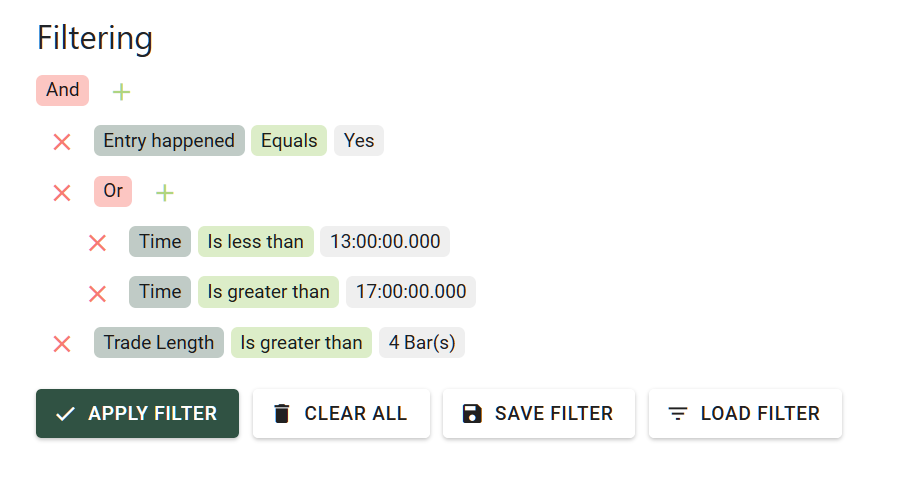
The Filter Builder allows you to isolate specific Trades within the Statistics Request to update the charts and graphs dynamically.
This is a critical feature for strategy refinement. By applying filters, you can get an immediate glimpse of how your strategy would have performed under specific conditions without needing to run a completely new simulation.
Signal Filter Templates
After you set up a filter, you can save it as a Signal Filter Template to use it later to filter any of your Requests.
You can view and manage your saved Signal Filter Templates on the My Signal Filter Templates page inside the Tick2Tick Dashboard. Access its documentation here.
Example for Signal Filtering:
Recommended Workflow
- Analyze: Review the initial strategy performance on the charts and graphs below.
- Hypothesize: Identify potential improvements (e.g., "Does this strategy fail during high-volatility sessions?").
- Filter: Narrow down the Trades based on these factors—for example, show only specific Setup Sizes or specific time windows.
- Validate: Once you find a filtered setup that looks promising, create a Fine-Tuned Statistics Request to verify the new logic and check for improved DrawDown metrics.
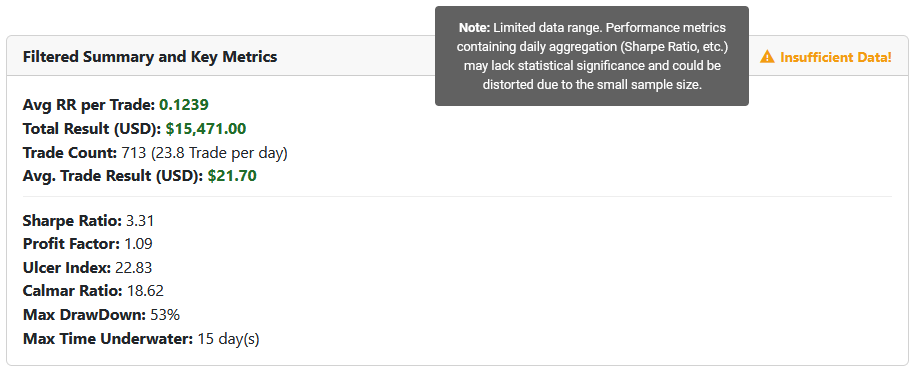
Filtered Summary Card
The card named Filtered Summary displays the performance metrics of the Statistics Request’s results specifically for the subset of Trades currently selected via the Filter Builder.
| Term | Definition |
|---|---|
| User Tag | Your custom label used for organizing and identifying the Request. |
| Avg. RR per Trade | The average Risk/Reward ratio across the currently filtered Trades. |
| Total Result (USD) | The final net profit or loss at the end of the simulation period. |
| Trade Count | The number of filtered Signals that successfully converted into active Trades. |
| Avg. Trade Result (USD) | The average result in USD across the filtered Trades. |
Equity Curve(s)
These charts visualize the progression of your account balance as the strategy develops.
If the Statistics Request contains Trades in only one direction, only a single Equity Curve will be visible.
The Equity Curves maintain chronological distance. This means that if there is a longer period with no active Trades, the chart will reflect this with a horizontal "gap" or flat line to accurately represent the passage of time.
Short and Long Direction Combined
This view displays the integrated results of both Short and Long Trades, showing your total account performance in a single line.
Short and/or Long Direction Separated
This view plots the Short and Long Trade results as separate lines, allowing you to compare the performance of each direction independently.
Pie Charts
Entry vs No Entry
This pie chart provides a breakdown of the total Signals within the Statistics Request, comparing how many successfully executed an Entry to become a Trade versus those that remained as Signals for which an Entry did not happen.
Winning vs Losing Trades
This pie chart illustrates the win/loss ratio of your executed Trades. It classifies a "Win" as any Trade with an RR above 0, and a "Loss" as any Trade that failed to reach a positive Risk/Reward ratio.
Distributions of Trade RRs
These histogram charts display how Trade RRs are distributed across 1-RR increments. This is highly effective for pinpointing specific RR regions where your strategy gains or loses the most value.
The platform provides both a standard and a logarithmically scaled version to ensure you can detect every relevant group of Trades. For instance, if most Trades reset in two major RR ranges that are far apart (e.g., -1 RR and +5 RR), the Trades occurring between them may be difficult to see on a normal scale. The logarithmically scaled chart ensures these smaller groups remain visible for analysis.
RR Cloud Chart
This bubble chart visualizes how Trades perform at various times of the day. The results are aggregated across the entire duration of the strategy's time period.
Each bubble represents:
- Direction: The trade direction (Long/Short) of the included Trades.
- Average RR: The average Risk/Reward ratio of the Trades in that cluster.
- Volume: The number of Trades contained within the bubble.
- Time of Day: The average time at which those Trades occurred.
This chart is a powerful tool for identifying which specific time periods are worth trading and which should be avoided.
If an area of Trades on the RR Cloud Chart shows consistently high performance, those times should be prioritized. Conversely, if an area shows poor performance, consider implementing a "Trading Break" during those hours.
Hourly RR Chart
This bar chart complements the RR Cloud Chart by displaying the average RR achieved during different parts of the day. Like the cloud chart, these results are aggregated over the strategy's entire timeframe.
Each bar represents:
- Direction: The trade direction of the included Trades.
- Average RR: The average Risk/Reward ratio for that specific hour.
- Trade Count: The total number of Trades that occurred in that hourly slot.
- Time: The specific hour of the day being measured.
While the RR Cloud shows individual clusters, the Hourly RR Chart provides a summarized, cumulative view. Using these two charts in tandem allows you to deeply understand your strategy’s performance profile throughout the trading day.
Aggregated Results in USD
This bar chart visualizes the strategy's performance over the simulation period. It supports multiple aggregation modes: Hour, Day, Week, and Month.
For each selected period, the chart displays:
- Sum of Result (USD): The net profit or loss for that specific timeframe.
- Broker Costs: The total commissions incurred during the same period.
- Total Performance: A dot-and-line overlay representing the sum of results and costs, allowing you to track performance trends across periods.
This chart is essential for evaluating profit margins against execution costs. For example, it helps identify if a strategy's profit is being eroded by high broker fees, which could result in a net loss despite a positive raw return.
Setup Size - Sum and Average RR
This bar chart illustrates how different Setup Sizes perform in terms of cumulative Risk/Reward. It includes a secondary data stream showing the Trade Count for each specific setup size.
This allows you to identify which setup sizes are the most profitable and how frequently they occur within your strategy.
Signals Data Grid
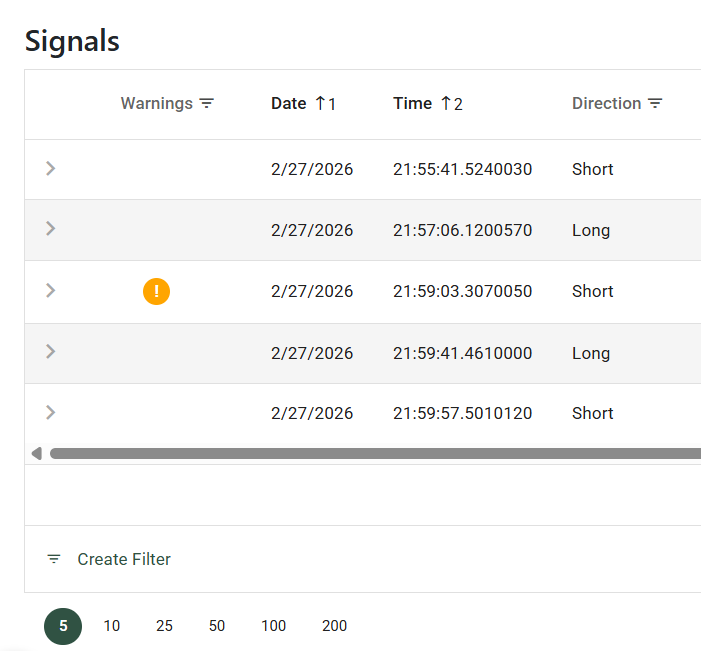
The Signals data grid provides an exhaustive list of every Signal and Trade within the Statistics Request.
| Column | Description |
|---|---|
| Warnings | Indicates data feed or reproduction alerts (see the Data Feed Warning section below). |
| Date | The date of the Signal, based on the Time Zone specified in the Request Settings. |
| Time | The time of the Signal, based on the Time Zone specified in the Request Settings. |
| Direction | Long or Short, shows the direction of the Signal. |
| Time Frame | The specific value of the Time Frame associated with the Signal. |
| Entry Happened | Indicates if the Signal successfully converted into a Trade (Yes or No). |
| Entry Level (Level 100) | The price level on the instrument where the Signal was intended to enter. |
| Stop Level (Level 0) | The original price level where the Signal’s Stop was placed. |
| Size in Ticks | The absolute Setup Size measured in the instrument's minimum tick increments. |
| RR | The total Risk/Reward ratio achieved by the Trade. |
| Result (USD) | The net financial result in USD after commissions. |
| Round Turn Commission | The total brokerage cost associated with the Trade. |
| Quantities | The number of contracts or lots allocated to the Trade upon Entry. |
| Why No Entry? | Provides the specific reason if a Signal failed to trigger an Entry. |
At the bottom of the grid, the Avg. RR and Total Result (USD) are automatically aggregated for the currently displayed data.
Trade Life Visualized
If your Statistics Request was processed using the Statistics - Trade Visualization Product, a chevron (arrow) icon will appear at the far left of each row. Clicking this expands a specialized view that visualizes the "life" of the Trade:
- Pre-Signal Context: Displays the 2 bars preceding the Signal.
- Signal Direction: An up or down arrow indicating the Signal bar’s direction.
- Entry Marker: A light blue right-pointing triangle marks the exact entry level.
- Reset Marker: A dark blue left-pointing triangle marks where the Trade was closed.
- Dynamic Stop: A red line tracks the Stop Level throughout the trade, showing movements such as Break Even or Move Stop.
- Post-Trade Context: Displays the 2 bars following the Trade Reset.
Filter Builder
Located at the bottom left of the data grid, these filters allow you to isolate specific data points. These filters are mirrored with the Filter Builder discussed in the overview section.
This tool is vital for experimenting with your data; by filtering specific signals, you can immediately see how those changes would impact the overall performance of the Statistics Request.
Data Feed Warning
If an orange "!" mark appears in the Warnings column, it indicates that the Statistics Server could not reproduce the Signal with 100% precision. This is often due to the extreme complexity of slicing high-frequency tick data.
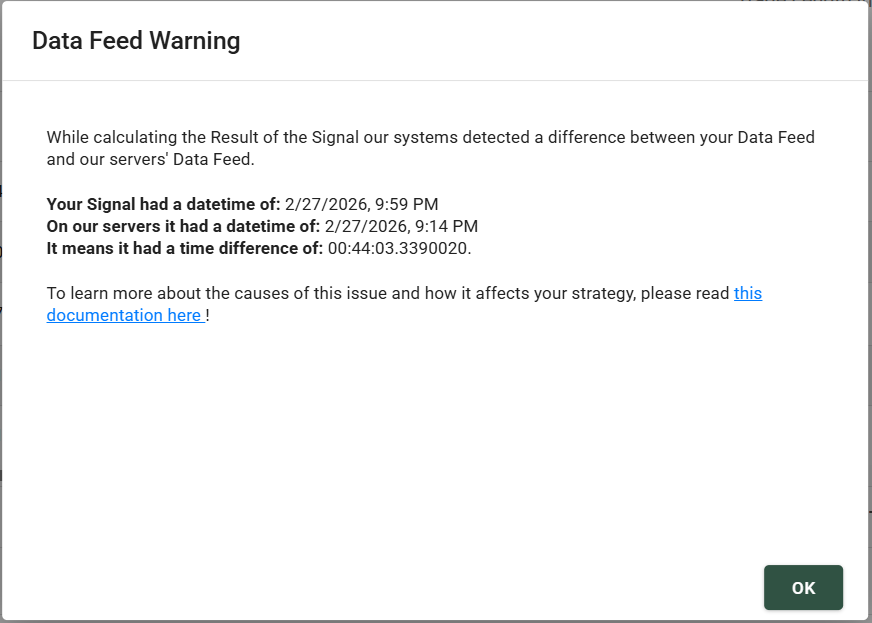
Clicking the warning icon reveals exactly how the system fitted the Signal to the market data and specifies the timestamp difference (latency) involved in the reproduction.
Main Metrics
This list contains the core metrics and fundamental information for the Statistics Request.
| Term | Definition |
|---|---|
| User Tag | Your custom label used for organizing and identifying the Request. |
| Automatic Tag | A system-generated string of key settings concatenated for quick identification. |
| Time Zone | The specific Time Zone you designated in the Request Settings. |
| Signal Count | The total number of Signals uploaded in the Request. |
| Short Signal Count | The total number of Short Signals uploaded in the Request. |
| Long Signal Count | The total number of Long Signals uploaded in the Request. |
| Trade Count | The number of Signals that successfully converted into active Trades. |
| Short Trade Count | The number of Short Signals that successfully converted into active Short Trades. |
| Long Trade Count | The number of Long Signals that successfully converted into active Long Trades. |
| Instrument | The trading Instrument used for the simulation. |
| TimeFrame Value & Type | The specific Timeframe setting (e.g., Range, Time, or Trades) and its value. |
| Average RR per Trade | The average Risk/Reward ratio achieved across all executed Trades. |
| Total Result (USD) | The final net profit or loss at the end of the simulation period. |
| Full Broker Cost (USD) | The total accumulated Round Turn Commission costs for all Trades. |
| Trade Visualization | Indicates Yes or No based on the Statistics Product used to process the Request. |
Statistics Settings
This section lists the specific Statistics Settings used for the current Request. To learn more about the function of each individual setting, please refer to the Settings Documentation.
The settings are organized into logical categories for easier navigation. You can expand or collapse the details for each category using the chevron (arrow) icons.
DrawDown Sequences
A DrawDown Sequence tracks consecutive losing Trades.
Tick2Tick Statistics monitors two specific types of DrawDown Sequences, detailed in the following paragraphs.
Max Losing Trade Sequence
This metric identifies the highest number of consecutive losing trades. For example, a value of 15 means that 15 Trades in a row were reset with an RR below 0. The system provides the exact timestamps for when this sequence started and ended.
Max Lost USD
This metric identifies the maximum capital lost (in USD) during a sequence of losing trades. For example, a value of -$2,000 USD means that a series of consecutive losing trades resulted in a $2,000 loss before a winning trade occurred. The system provides the exact timestamps for the start and end of this sequence.
DrawDown Periods
A DrawDown Period represents a section of the Equity Curve (or account balance) spanning from the moment the balance begins to drop until it recovers and exceeds the previous peak value.
Statistics tracks the most significant DrawDown Periods. If one DrawDown Period fully encompasses another smaller one, only the larger period is retained.
DrawDown Periods are displayed in a data grid, sorted by their Size in USD in descending order.
| Column | Description |
|---|---|
| Start Date Time | The timestamp when the DrawDown Period began. |
| End Date Time | The timestamp when the DrawDown Period concluded (left empty if still ongoing). |
| Start Value | The Equity Curve or account balance at the start of the DrawDown Period. |
| Low Value | The lowest balance value reached during the DrawDown Period. |
| Size in USD | The total depth of the DrawDown Period from peak to trough. |
| Is Finished | Indicates whether the DrawDown Period has concluded or is still active. |
Clicking the chevron on the left side of any row will open a dedicated graph visualizing that specific DrawDown period on the Equity Curve.
Ignored Signals
This data grid lists any Signals that were excluded from the calculation. Signals are typically ignored for the following reasons:
| Reason | Description |
|---|---|
| Vertical Threshold Limit | Occurs when the Statistics Servers cannot match the Signal's metadata (timestamp, levels, or direction) to our market data. This is usually caused by misconfigurations in the Request Settings or, occasionally, during futures contract rollover periods. |
| Matching Timestamp | Occurs when multiple Signals are uploaded with the identical timestamp and direction. Our system retains only the first Signal and ignores the duplicates. |
Ignored Signals are not simulated and do not consume any Statistics Trade Credits (STCs).
Export Result
All results from your Statistics Requests can be exported using the following two buttons available on the Details page:
Download Report
This button allows you to export all Signals, DrawDowns, and Summaries into a structured Excel file. This format is ideal for deep data mining or seamless integration with external tools like Power BI, Tableau, or custom analytics platforms for further research.
Print Page Contents
This option allows you to use your browser’s "Print-to-PDF" functionality to quickly generate a shareable or offline-ready version of the entire Results page. This is particularly useful for archiving your strategies or reviewing your data when an internet connection is unavailable.
For the best results when exporting to PDF, ensure that any expanded views (like Trade Life Visualized) are open before printing if you wish to include those specific details in the document.
Warnings
Data Feed Precision
In some instances, the Statistics Server may not be able to replicate a Signal with 100% accuracy. Because of how high-frequency market data is sliced, even a one-tick offset can cause OHLC bars to differ slightly between platforms and workstations.
To ensure you still receive actionable insights, the system will simulate the Trade by finding the nearest matching timestamp to your original data. When this occurs:
- An orange "!" icon appears in the Warnings column of the Signals data grid.
- You can click the icon to view the exact millisecond offset (latency) used to fit the Signal to our market data.
See example for this in these pictures:
Lost All Capital
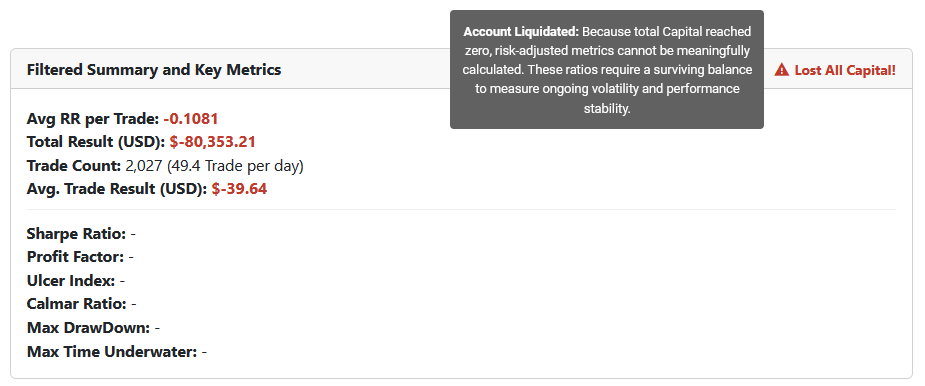
If your strategy results in account liquidation (total Capital reaching zero), a red warning icon and label will appear at the top right of the Key Metrics cards, saying "Lost All Capital!".
When an account is liquidated, risk-adjusted metrics such as the Sharpe Ratio, Profit Factor, Ulcer Index, and Calmar Ratio cannot be meaningfully calculated and will display as empty values ("-"). This is because these performance ratios require a surviving account balance to properly measure ongoing volatility and performance stability.
See example for this warning:
Insufficient Data for Key Metrics
If your Statistics Request covers a period of less than 180 days, an orange warning icon and label will appear at the top right of the Key Metrics cards, saying "Insufficient Data!".
This serves as a reminder that small sample sizes can distort complex risk-adjusted metrics such as the Sharpe Ratio, Ulcer Index, and Calmar Ratio. In shorter simulations, statistical outliers have a disproportionate influence, which may lead to an inaccurate representation of the strategy's long-term viability.
See example for this warning: